DEALER LOGIN
Support and Development - Honda Information Center
 Support and Development

How to Access
Acura Web‑Based Training on OLU

-
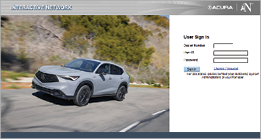
Log in to the Acura Interactive Network (iN) on your computer or other device. If you don’t have access or need assistance, contact your Dealer iN Administrator to ensure you’ve been set up as a user.
If you need more help, contact the iN Help Desk at (800) 245-4343. They will need your DPTS ID and your Dealer Code. -
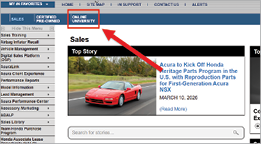
After logging into the iN, select the Online University (OLU) link in the top menu.
-
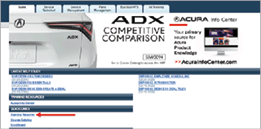
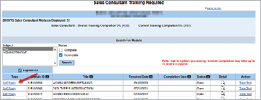
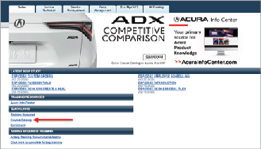
To view your Training Requirements, go to Training Required under Quick Links.To launch a course from the Required Training list, select the Self Study link located to the left of the desired course entry.
-
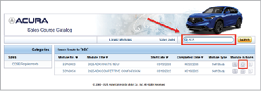
To search for a specific course, go to Course Catalog under Quick Links.
In the Search bar, enter a Module ID or course title.To launch a course from the Catalog, select the Launch Module (arrow) button ().
-
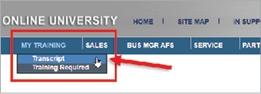
If you want to confirm which courses you have completed or received credit for, look for My Training at the upper-left corner of the OLU Home page and select Transcript from the drop-down menu.Important: To ensure completion credit, training courses must be completed in a single sitting. If you log out before completing that course, you will have to restart it from the beginning
If you complete any training module and discover later that you did not receive credit for it, do not retake the test immediately. First, call the iN Help Desk at (800) 245-4343 and provide your name, DPTS ID, and Dealer Code. They may be able to verify your work and give you manual credit for the module.
How To Access Acura Web-Based Training On OLU